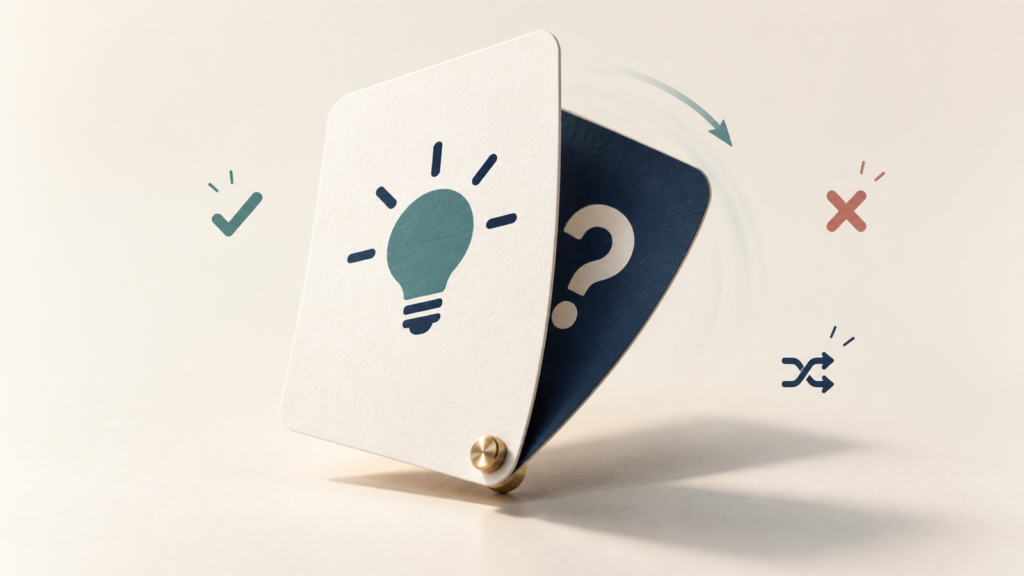
Information checked on September 25, 2026. On September 22, OpenAI announced interactive flashcards in ChatGPT. You can ask for cards on a topic or turn uploaded notes into cards that appear directly in the response. You can flip each one, mark what you know, separate what you want to practice again, and shuffle the order. Sets are automatically saved in Library. The new feature changes how you interact with cards; it does not guarantee that their content is correct or replace a study plan.
What are ChatGPT’s new flashcards?
The feature turns a conversation into an interactive set of study cards. On the front, you see a question or cue. Before flipping the card, try answering on your own. Flip it to check the answer. Then mark ✔️ for what you know or ❌ for what you want to practice again. You can also shuffle the cards. This workflow was described in the September 22, 2026 release notes and detailed on the official Flashcards in ChatGPT page.
The difference from asking “make a list of questions and answers” is the interaction inside ChatGPT. Cards can be flipped, marked, and reopened in Library. Even so, the interface does not automatically assess whether you understood a complex concept: marking ✔️ or ❌ is your decision. The documentation does not describe a spaced-repetition algorithm, an automatic review calendar, advanced statistics, or a performance grade. Do not treat a ❌ mark as proof of a complete system of that kind.
Our earlier guide to questions, quizzes, and flashcards with AI remains useful for building good questions and reviewing your study method. This article covers ChatGPT’s specific new feature: how the native tool works, where sets are saved, and what to check when using it.
Who can use it: plans, web, and mobile
OpenAI states that flashcards are available on the web and mobile devices for all ChatGPT plans. That includes initial access on Free. The announcement does not provide a separate table of differences between Free, Go, Plus, Pro, Business, Enterprise, and Edu for this feature, so we do not assign any number of sets, cards, or reviews to a plan. General account limits and workplace controls may affect practical use.
To create and retrieve sets saved in Library, use a signed-in account. The feature documentation describes a ChatGPT conversation and cards stored in Library; it does not present the workflow as anonymous access. On mobile, OpenAI confirms availability, but the controls’ placement may differ between the app and browser. This tutorial describes actions without promising that every button sits in the same place on all screens.
The sources consulted do not announce a specific regional restriction for flashcards or guarantee an identical interface for everyone immediately. If interactive cards do not appear after requesting a set, check that you are signed in, update the app, and consult official help. We do not assume support in the desktop app because the announcement specifies web and mobile.
How to create flashcards in ChatGPT
Open a ChatGPT conversation and ask for cards on a focused topic. For example: “Create flashcards about photosynthesis for a basic review. Use short questions, one idea per card, and answers of up to two sentences.” The official help says ChatGPT creates cards directly in its response. Read a few before starting your review: a clear question helps recall, while a broad one may conceal several possible answers.
Choose an objective that fits one session. “Everything about biology” tends to produce a scattered set; “functions of the nucleus, membrane, and mitochondrion” is easier to check. For vocabulary, ask for terms and usage examples. For a definition, ask a card to test a specific distinction, such as the difference between two related concepts. According to the same help page, ChatGPT can add or edit cards in the conversation when requested.
After receiving a set, try answering the front of each card before flipping it. Tap or click the card to reveal the back. Compare your response with the displayed information and your study source. If a question is vague or the back combines two facts, request a correction. The aim is to practice what you actually studied, rather than finish as many cards as possible.
How to turn your notes into cards
OpenAI confirms a second route: upload your notes in a conversation and ask for them to be turned into flashcards. Use only material you may share through your account. The flashcard documentation does not promise that every file type will be accepted or that any PDF will be interpreted perfectly. If file uploads are unavailable in your interface or the material contains difficult-to-read charts, paste a short text passage or reorganize the notes before requesting cards.
A useful request is: “Turn these notes into 12 flashcards. Ask one clear question per card, with a short answer. Do not add facts absent from the notes. If anything is incomplete, flag it for me to check.” This reduces the chance of mixing supplied content with the model’s general knowledge. Still, check names, formulas, dates, numbers, and definitions against the original material.
If your notes are long, split them by topic and generate smaller sets. When attaching school or professional material, remove personal data, third-party information, and confidential content that should not enter the service. The Library help explains that uploaded files can be saved and managed in your account, subject to their own size and storage limits. That differs from a flashcard set saved automatically.
How review with ✔️, ❌, and shuffling works
The documented workflow is simple: read the front, try recalling, flip the card, and mark ✔️ if you know the answer or ❌ if you want to practice again later. Shuffle to encounter the cards in another order. The dedicated flashcard page also says Library lets you see cards you know or do not know. It does not describe an automatic interval between reviews or a study schedule. If you want to return tomorrow or next week, organize that routine yourself.
Marking ✔️ does not certify learning. If you only recognized the answer after flipping, marking ❌ and trying again may be more honest. If an ambiguous question caused your mistake, edit the card before repeating it. Shuffling helps reduce dependence on order, but it does not fix a set of weak questions or incorrect answers.
You do not need to get everything right on the first round. Use marks to choose what to review later without turning the feature into a scoreboard. When an answer is confusing, ask ChatGPT to rewrite the definition in simpler language or split a card covering two ideas. Official documentation confirms requests to add and edit cards within the conversation.
Where are flashcards saved?
Sets are automatically saved in ChatGPT Library, according to the release notes and dedicated help page. To continue studying, open the saved set in Library or ask ChatGPT to bring the flashcards back into the conversation. OpenAI describes the complete Library experience for the web; on mobile, display and access paths may differ. Avoid relying on a fixed menu sequence.
A saved set is not the same as the notes file you uploaded. Both may appear in Library according to the account’s rules, but they serve different purposes: the file is your source, and the cards are derived material that needs reviewing. If you edit your notes later, do not assume an old set updates itself. Check it and request card changes when necessary.
Practical example: Lucas reviews biology
Lucas has a test on cells and little time to review. He chooses his own notes on the membrane, nucleus, and mitochondria, removes personal information, and uploads them in a conversation. He asks for ten cards with one question per concept and a short answer. Before studying, he checks two cards against his notebook and notices that one asks “What is the function of a cell?”—a question that is too broad.
Lucas asks: “Rewrite the card about the cell’s function. Use a specific question about the plasma membrane and an answer based only on my notes.” He then reads each card’s front, tries answering, flips it, and marks ✔️ or ❌. He shuffles the order for a second round. Later, he looks for the set in Library or asks ChatGPT to retrieve it. He reserves time for exercises and reading because cards help review facts and short concepts but do not replace understanding the chapter.
How to request better flashcards
A good instruction defines the topic, audience, approximate quantity, answer length, and permitted source. For example: “Create 10 cards for someone beginning to study cells. Each question should test only one concept. Answer in one sentence and use only the uploaded notes.” Then check whether the cards actually follow those criteria. The requested number is guidance, not a quality indicator.
Avoid cards such as “Explain all of photosynthesis,” which calls for a long answer, or “What is important about cells?”, which does not define what to recall. Prefer questions with verifiable answers. If two concepts appear on one front, ask: “Split cards that mix more than one idea and keep one question per card.” If an answer depends on context, include that context on the front. For similarly spelled terms, request short examples that distinguish them.
The interactive feature is a way to present and review questions. The set’s editorial quality remains the learner’s responsibility. Our guide to studying better with AI explores how to keep learners in control of their learning and check generated material.
What to check before studying from the cards
ChatGPT can make mistakes. Its official help advises comparing flashcards with the original notes or guide, especially before an exam, and requesting edits if a card is wrong or unclear. Start with a sample: check a few questions, answers, and examples. If you find errors, review the rest more carefully. For technical content, confirm formulas, units, numbers, and application conditions.
When cards come from an open topic without supplied material, checking is even more important. Do not use a generated response as the final source for a historical date, medical concept, or rule that has changed. Use the textbook, course material, or an appropriate source. If the original notes contain errors, cards may reproduce them. The feature does not automatically validate the source.
Studying with cards means trying to retrieve an answer before seeing it. This is a simple way to practice active recall, but it is not a promise of a better grade or guaranteed learning. For questions requiring argument, interpretation, or application to problems, supplement your review with exercises and explanations of your own.
Do flashcards replace other study methods?
No. Short cards can help with vocabulary, definitions, formulas, and distinctions between concepts. Alone, they are less suitable for writing an essay, solving a long problem, interpreting a complex text, developing a project, or practicing a manual skill. Use flashcards as one part of reviewing rather than converting all content into short questions and answers.
If a topic requires step-by-step reasoning, ask ChatGPT for worked exercises and attempt them before reading the explanation. If you need to summarize long study material, organize the main points before generating cards; our guide to summarizing PDFs and study materials covers that step. The new flashcard feature does not eliminate reading, practice, or discussion with teachers and classmates.
Who should try the new feature?
Students can use the workflow to review their own material before a test. Language learners can create vocabulary cards with context. Teams can prepare a simple review of internal terms if confidentiality rules permit. The best test is small: choose a topic, generate a few cards, correct ambiguities, and assess whether the interaction helps your study routine.
If you follow other product changes, the AI news hub gathers stories with practical applications. The article on Google Vids and Gemini Omni covers another recent update, but concerns video creation rather than studying with cards. Evaluate each feature according to the tasks it addresses and its documented limits.
Sources and verification date
Information checked on September 25, 2026 in the ChatGPT release notes, the Flashcards in ChatGPT help page, and the Library documentation. The flashcard page describes creation, review, editing, and returning to a set. None of these sources describes flashcards as an automatic spaced-repetition system.